Sunday, 16 February 2014

Some different ways to develop application in Android/Mobile

In present, Android is the most popular mobile os in the world and many people wanted to learning to make applications in this os. And today, I will introduce some ways to develop application in Android (and some way to develop cross-platform mobile os).


Eclipse + Android development tools (ADT)

With a single download from http://developer.android.com/sdk/index.html (current, when android studio isn't final version), the ADT Bundle includes everything need to begin developing apps:
  • Eclipse + ADT plugin
  • Android SDK Tools
  • Android Platform-tools
  • The latest Android platform
  • The latest Android system image for the emulator
This is the main software development kit (SDK) of Google for develop Android apps.

Characteristic

  • Main kit will full feature.
  • Easy to search solutions because almost Android developer use it.
  • Ram: about 500 mb.
  • Not really stable.
  • In my personal view, I don't like eclipse: ugly and not stable.


Android studio
Download: http://developer.android.com/sdk/installing/studio.html
Android Studio is a new Android development environment based on IntelliJ IDEA developed by Google. Similar to Eclipse with the ADT Plugin. You can think it is new generation of Eclipse with ADT.
But:
Android Studio is currently available as an early access preview. Several features are either incomplete or not yet implemented and you may encounter bugs.
 
Characteristic
  • Like eclipse but having some differences.
  • Ram: about 400 mb (lighter) but start up slower.
  • Still test version.
  • More comfortable and intelligent.
  • When use eclipse project, need export from eclipse, can't use direct.

Android studio having some advanced that I very like:

Show hint first code of block when block code too long and can't see in screen, and Indent Guideline (like in notepad++)

Android studio hint first code of block tientuts

Autocomplete more intelligent like with android studio in xml, when you type a , it will show android: , we only need tab and type other word. But in eclipse, we need type full android: to autocomplete property of tab.
Android studio tientus autocomplete

We can show multi-screen, multi-language and multi-device in Android studio.
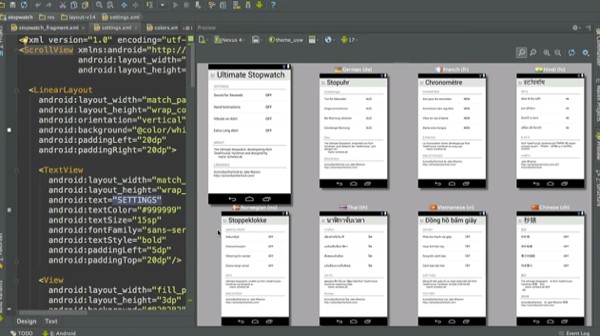
Android studio multi-screen and multi-language tientuts

Android studio view with different devices tientuts


PhoneGap (Cross-platform)
Homepage:http://phonegap.com/
PhoneGap is a mobile development framework produced by Nitobi, purchased by Adobe Systems.

In the easiest way, you can know that coding in phonegap is coding web mobile, phonegap supply some function to javascript can interact with system, show in bellow.


And after coding web, we need code only few code lines and import library of phonegap like in red arrows. And to call Phonegap APIs from javascript, in web code (blue arrow) we need use cordova.js library.
Phonegap code tientuts


This is a demo application:
MDS Phonegap API demo
Phonegap provides online service for wrap web code to many mobile platform without need make manual like eclipse code above.


Titanium (Cross-platform)
 Like Phonegap but we can easy recognition titanium apps different with phonegap apps that, titanium have UI like application be created by eclipse, android studio. 
Titanium application tientuts
when we use javascript code like:
b = Ti.UI.createButton({title:'Poke Me'});
It will convert to java code (in Android), and so it can use more functions of Android os but it will not as compatible as Phonegap.

Monday, 20 January 2014

Some popular implicit intents in Android

When coding Android, we must do very much with intent (Explicit and implicit) to start activities and applications. Below are some popular implicit intent to start some work like open webbrowser, send mail, sms, open/add contact .... Hoping useful for you.


btnBrowser = (Button) findViewById(R.id.btnBrowser);
  btnBrowser.setOnClickListener(new OnClickListener() {

   @Override
   public void onClick(View arg0) {
    intent = new Intent(Intent.ACTION_VIEW);
    intent.setData(Uri.parse("http://google.com.vn"));
    startActivity(intent);
   }
  });
  btnSearch = (Button) findViewById(R.id.btnSearch);
  btnSearch.setOnClickListener(new OnClickListener() {

   @Override
   public void onClick(View v) {
    intent = new Intent(Intent.ACTION_WEB_SEARCH);
    intent.putExtra(SearchManager.QUERY, "abc");
    startActivity(intent);
   }
  });
  btnDial = (Button) findViewById(R.id.btnDial);
  btnDial.setOnClickListener(new OnClickListener() {

   @Override
   public void onClick(View v) {
    intent = new Intent(Intent.ACTION_CALL);
    intent.setData(Uri.parse("tel:1234567890"));
    startActivity(intent);
   }
  });
  btnShowPicture = (Button) findViewById(R.id.btnShowPicture);
  btnShowPicture.setOnClickListener(new OnClickListener() {

   @Override
   public void onClick(View v) {
    intent = new Intent(
      Intent.ACTION_PICK,
      android.provider.MediaStore.Images.Media.INTERNAL_CONTENT_URI);
    startActivity(intent);
   }
  });
  btnGoContact = (Button) findViewById(R.id.btnGoContact);
  btnGoContact.setOnClickListener(new OnClickListener() {

   @Override
   public void onClick(View v) {
    intent = new Intent(Intent.ACTION_PICK,
      ContactsContract.Contacts.CONTENT_URI);
    startActivity(intent);
   }
  });
  btnInsertContact = (Button) findViewById(R.id.btnInsertContact);
  btnInsertContact.setOnClickListener(new OnClickListener() {

   @Override
   public void onClick(View v) {
    intent = new Intent(Intent.ACTION_INSERT,
      ContactsContract.Contacts.CONTENT_URI);
    intent.putExtra(ContactsContract.Intents.Insert.NAME, "Tien");
    intent.putExtra(ContactsContract.Intents.Insert.EMAIL,
      "tienlbhoc@gmail.com");
    intent.putExtra(ContactsContract.Intents.Insert.PHONE,
      "01234567890");
    startActivity(intent);
   }
  });
  
  btnSendSMS = (Button) findViewById(R.id.btnSendSMS);
  btnSendSMS.setOnClickListener(new OnClickListener() {

   @Override
   public void onClick(View v) {
    intent = new Intent(Intent.ACTION_VIEW);         
                intent.setData(Uri.parse("sms:"));
                intent.setType("vnd.android-dir/mms-sms");
                intent.putExtra("sms_body", "Here you can set the SMS text to be sent"); 
                intent.putExtra("address",  "1234567890");
                startActivity(intent);
   }
  });
  
  btnSendEmail = (Button) findViewById(R.id.btnSendEmail);
  btnSendEmail.setOnClickListener(new OnClickListener() {

   @Override
   public void onClick(View v) {
    intent = new Intent(Intent.ACTION_SEND);
    intent.setType("text/html");
    intent.putExtra(Intent.EXTRA_EMAIL, "tienlbhoc@gmail.com");
    intent.putExtra(Intent.EXTRA_SUBJECT, "Subject");
    intent.putExtra(Intent.EXTRA_TEXT, "I'm email body.");

    startActivity(Intent.createChooser(intent, "Send Email"));
   }
  });


Wednesday, 1 January 2014

Netbeans or Eclipse IDE for code

I am a fan of Netbeans. And in this article, I will tell about why I prefer Netbeans to Eclipse.


Netbeans is owned by Oracle
With java developer, Netbeans is owned by Oracle (Oracle is owner of java too), so we can be confident in its future development and support. In present, many support document can be found in Netbeans and Oracle website. Example:


Java EE & Java Web Learning Trail
https://netbeans.org/kb/trails/java-ee.html

Creating a RESTful Web Service Using NetBeans IDE
http://docs.oracle.com/cd/E19226-01/820-7627/giqaa/index.html


Many default good plugins/functions

Undeniably Eclipse has a lot of plugins and extensions. But many of them are not as good as Netbeans plugins/functions or must pay to use.
When I coding java, javascript, php, c/c++, html5. Netbeans is better and easier than Eclipse, Aptana (Eclipse plugin for code web) and more stable.

But with python (use pydev) or Android (adt) and many languages out of default in Netbeans, Eclipse plugins are better. But java (all feature), web, php, c++ are almost full for me, Android now is changing to android studio and with pydev, I use pycharm, Eclipse is only a secondary IDE of them.


Easy for install and more compatibility


Netbeans has full functions like tomcat, glassfish servers for web and newest features, drag and drop GUI function in install file, embed webkit to debug, javascript, templates,libs (like jquery) for php, java, javascript ... install process in Linux or Windows has wizard (very modern).
In Eclipse, only download, extract and use (with minimum demand) but need download and install server, GUI drag drop plugin for java swing plugins (must pay), and ....

Netbeans and eclipse need install jdk first but Netbeans has "Netbeans with jdk" version in Oracle website.


In ubuntu with unity, Netbeans support create launcher and stick to unity, eclipse error with menu.

Error menu of Eclipse in unity tientuts
Can fix it but I don't like must search google and fix every install.

Autocomplete and support code

Eclipse support autocomplete too but not as good as Netbeans. See follow.

Autocomplete expression language don't show in Eclipse but Netbeans has:


Netbeans support many shortcut key and template code better than Eclipse.
When I coding, I often use:
 psvm<tab> to print lines:

public static void main(String[] args) {
}

sout<tab> to  System.out.println("");

fori<tab> to for an array
forl<tab> to for an list
form<tab> to for a map
or for + ctrl space to select or view shortcut at the right.
Shotcut code templates


view more in Help -> Keyboard shortcuts card.

With Eclipse, we can only do with for and ctrl+space and enter or select .


And Netbeans has some other advanced like:

Show line of start block code

In dotnet, visual studio is the best comfortable IDE , and in java, you can see image of it in Netbeans (and more).


Stable
I use Netbeans for code java, web and Eclipse for code Android. And I think Netbeans more stable than Eclipse.


Lightweight
In the past, Eclipse is more lightweight than Netbeans, but now, Eclipse is the same and after install some plugin, it is really heavy and not stable.


Saturday, 21 December 2013

Tools and web to studing ASP.NET

I have learnt ASP.NET recently, and will share some information in this article.

Tools/IDE

First, tools for coding ASP.NET. ASP.NET is Microsoft 's product so you must use Windows to code and tools are run in Windows. There are three tools (all are of Microsoft):

Webmatrix

Homepage: http://www.microsoft.com/web/webmatrix/
A free, easy to use tools, match for newbie. Many tutorials in learning asp.net websites base on this tool.
Some characteristics:
  • Small, easy to install, easy to install extension.
  • Simple to use.
  • Support autocomplete (with overloading methods are not good), highlight code.
  • Support PHP, ASP classic
  • Don't support debug, format code ...
Webmatrix tientuts


Microsoft Visual Studio Express for Web

An advanced tool with many features, and acquainted with dotnet developer . I think will this, you can use normal demands.


Microsoft Visual Studio paid versions

Same Express but with functions for business. With me, Express version is enough but when you work in company, and need more, you can use paid versions.


Web to learn ASP.NET

http://www.asp.net/ go to learn tab and read

http://www.microsoft.com/web/category/all  other of microsoft

http://www.w3schools.com/aspnet a famous website for learning web.

Saturday, 16 November 2013

Debug php with Netbeans and Xampp

Xampp is one of the best free tool for develop website in localhost.
With Xampp I can use php with Apache module, database with MySQL, transfer file with FileZilla, web java ee with Tomcat. And it is very easy to install, only download from here and install, open and click start modules.

Netbeans is still one of the best free IDE to develop many language (java, c++, php ... )

But if you only install netbeans and run Xampp to code php, you will only run to view result, you will not debug: run, pause, step lines and view changed variables...


Today, I will present how to debug php with Netbeans and Xampp because Xampp was integrated xdebug and easy to config when compare with others way.

I use Netbeans 7.4 and Xampp 3.1.0.

XAMPP
Config php.ini in XDebug area.

[XDebug]
zend_extension = "E:\xampp\php\ext\php_xdebug.dll"
xdebug.remote_enable=1
xdebug.remote_handler="dbgp"
xdebug.remote_mode=req
xdebug.remote_port=9000

xdebug.profiler_append = 0
xdebug.profiler_enable = 1
xdebug.profiler_enable_trigger = 0
xdebug.profiler_output_dir = "E:\xampp\tmp"
xdebug.profiler_output_name = "cachegrind.out.%t-%s"
xdebug.remote_host = "127.0.0.1"
xdebug.trace_output_dir = "E:\xampp\tmp"

tientuts blogger


Netbeans

Go to menu: Tools -> Options and config like this image


And restart Netbeans, Xampp to active debug

Sunday, 10 November 2013

Install psycopg2 with Postgresql

psycopg2 is a driver in python to connect python application with postgresql.

Install library in python, normal is easy with pip, easy_install but with psycopg2, I met errors in all linux and window.

With window, I can use this option:
http://tientuts.blogspot.com/2013/10/fix-some-errors-when-install-library.html

but with linux, when I install, this is a very common error:

Error: pg_config executable not found.

Please add the directory containing pg_config to the PATH

or specify the full executable path with the option:


    python setup.py build_ext --pg-config /path/to/pg_config build ...


or with the pg_config option in 'setup.cfg'.

----------------------------------------
Command python setup.py egg_info failed with error code 1 in /tmp/pip-build/psycopg2


After search google and try, this is my solution (in Centos):
Install postgresql in here: https://wiki.postgresql.org/wiki/Detailed_installation_guides
In present, the newest version of postgresql is 9.3 and we need setup PATH value for postgresql

PATH=$PATH:/usr/pgsql-9.3/bin/
pip install psycopg2


Saturday, 2 November 2013

Multitask in the Linux Terminal

The oldest operating system I have ever studied is MS-DOS. This is a single tasking operating system, in the easiest way, you can see DOS like a single command line (cmd) window. In a long time, I use DOS single tasking and in the habit, I use cmd only in a single window. And when I use Linux with terminal (more power than cmd in window), the first time, I still use one terminal window, single tasking. But because of job requirements and the convenience of multitask, I changed, have use terminal with multi-task function (in many window/tab or in single window) or can be called: Multiple screen/area.


Multiple window and mutiple tab
With linux GUI (graphic user interface), these are the easiest ways.

Multiple window and multiple tab in terminal


With many terminals, you can easy change folder, run many terminal progresses like install a software and download a file and edit a text simultaneously.


Virtual consoles

Multiple window and mutiple tab are easy but What you do if you control a Ubuntu server without GUI ?

Linux has a function for this, this is virtual consoles, you can do with 6 terminals by use:
Ctrl+Alt+F1
for the first console, Ctrl+Alt+F2 -> F6 for other,  Ctrl+Alt+F7 for return graph (if GUI is installed).


Multitask with screen command

Virtual consoles is good function but if you telnet/ssh from pc to a server with putty, cmd or other, you can't use Ctrl+Alt+F<1-6>. You can do with many window by retype connect commands and password, so slow, and you can use screen command to multitask terminals.

Install (in ubuntu/debian):

sudo apt-get install screen

Some basic command to use

Create a screen:
screen -S name
Exit/detache screen:
ctrl+A, D
Go to an  existed screen
screen -r name
Terminal a screen:
ctrl+A, K


Other way

use a software can auto connect and auto fill password like Multi-Tabbed PuTTY, secure crt ..

Multi-Tabbed PuTTY tientus blogger